
Verify your Google Ads connection
A 60-second check that the right ad account is linked, the connection hasn't expired, and tracking is syncing correctly.
The wizard auto-detects your tracking pixel during install, but the ad-account side of the connection isn't checked the same way. A 60-second post-wizard sanity check catches the most common day-one problems.
Open Space Settings
In the sidebar, click Space Settings (your avatar / space-name menu). The page is titled Space Settings and has a card labeled PPC Accounts on the right.
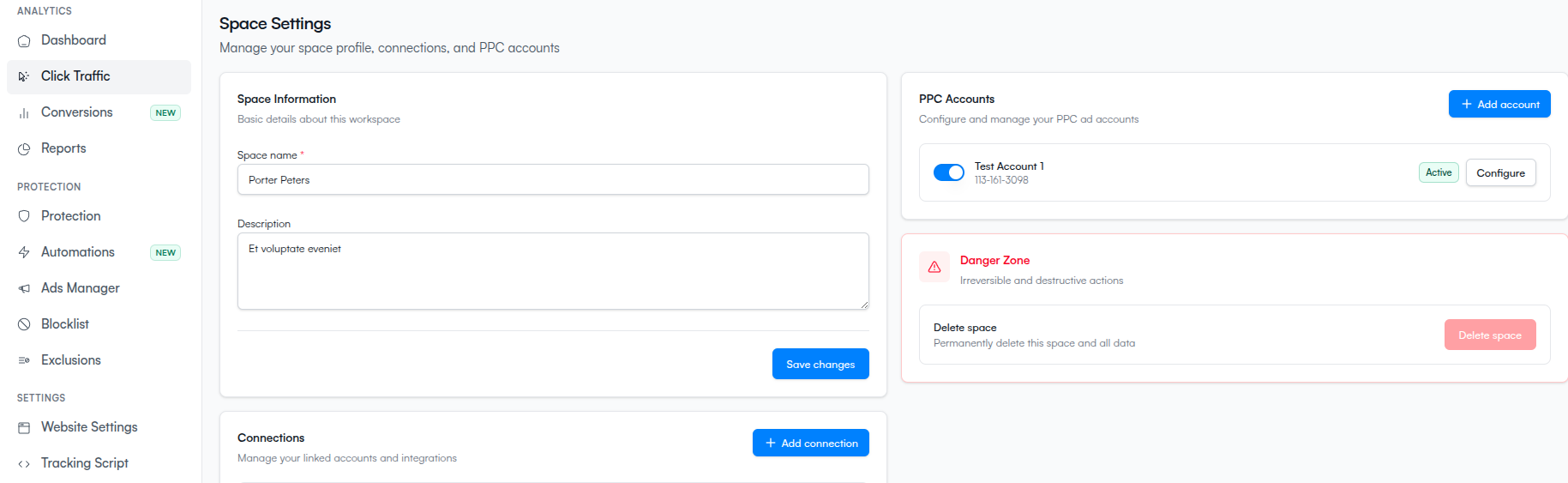
Check the basics
For each connected account in the PPC Accounts card, verify the four things below.
A Sync required badge means the tracking template never got installed in Google Ads. You'll see traffic data, but click-level attribution and audience-based exclusion won't work until you finish the sync.
Re-authorize if the connection is stale
OAuth tokens from Google expire if not refreshed. If the account shows an error state or sync repeatedly fails:
Confirm data is flowing
After the connection passes the checks above, open the Dashboard in the sidebar. Within a few minutes of real traffic on your site, you should see:
- Click counts showing up in the daily totals
- The campaign and ad-account selectors on the dashboard populated with your real campaigns
If the dashboard sits at zero for more than an hour despite real ad traffic, head to Troubleshoot Google Ads.
What happens next
- Troubleshoot Google Ads if something's off
- Or go to the dashboard — your first-week tasks are done.