Conversion Tracking

Set up conversion tracking using zero-code rules or the conversion pixel, and verify it's working.

ClickFortify gives you two ways to track conversions — pick one or use both together. Once set up, conversion data flows into the Conversions page automatically.


Setup: Two Methods

MethodBest ForRequires Code?
Zero-Code RulesPage visits, button clicks, form submissionsNo
Conversion PixelPurchases with dynamic values, custom eventsYes (copy/paste snippet)

Method 1: Zero-Code Conversion Rules

Zero-code rules detect conversions automatically based on visitor behavior — no extra script needed beyond your main tracking script.

Creating a Rule

Click Create Rule

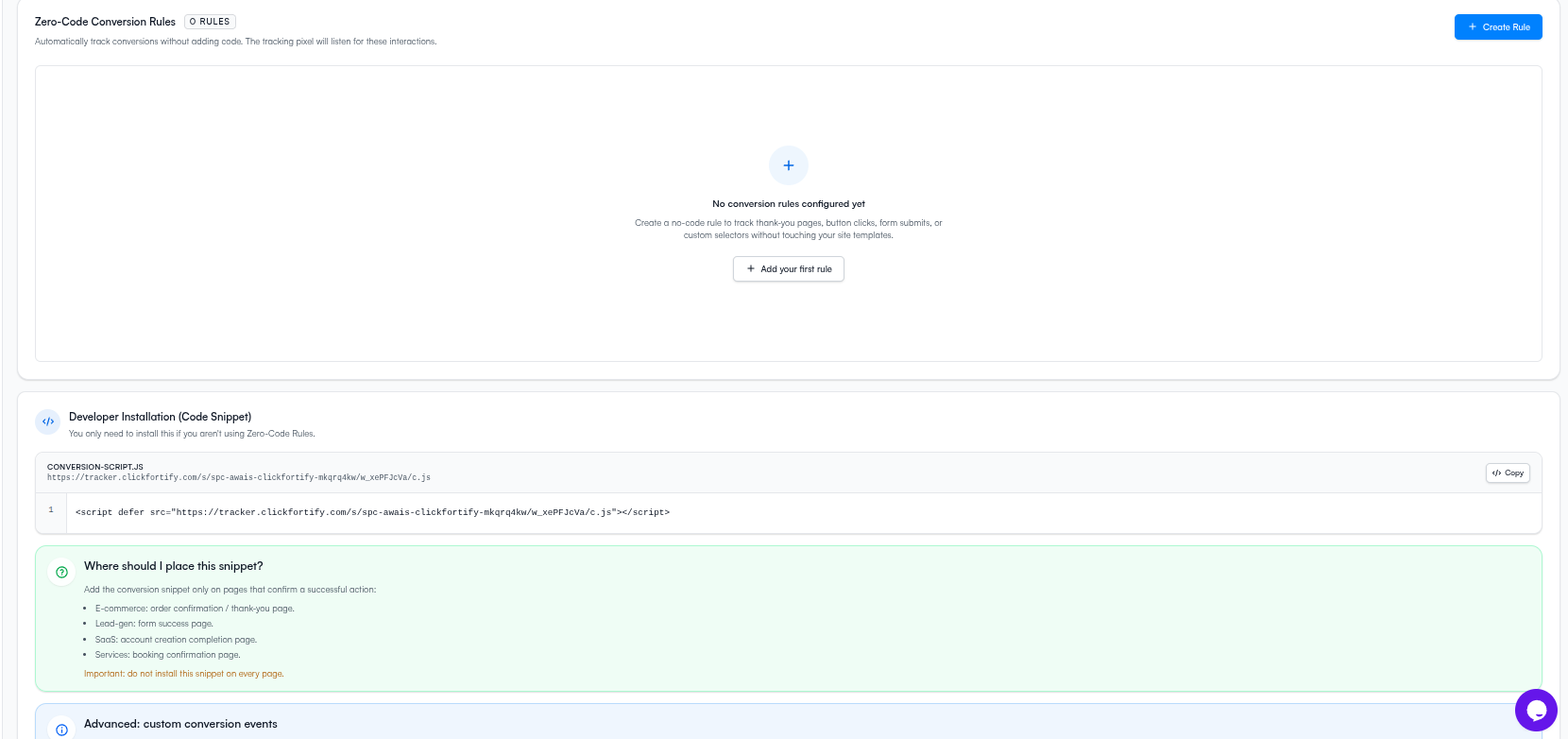
  1. Go to Conversion Tracking in the sidebar
  2. Under Zero-Code Conversion Rules, click Create Rule
  3. Fill in the fields based on the rule type you choose (see below)
  4. Click Save Rule

Rule Setup Popup

Rule Types

Each rule type detects a different interaction. Choose the one that matches how your conversion happens:


Page Visit — URL Match

Fires when a visitor lands on a specific URL. Best for thank-you pages and order confirmation pages.

FieldRequiredDescription
Rule NameYesLabel for this rule, e.g. Thank You Page
URL Match PatternYesThe URL path to match, e.g. /checkout/success*
Conversion ValueNoOptional dollar amount this conversion is worth

Wildcard support: Use * to match variable URL segments.

/thank-you*          → matches /thank-you, /thank-you?ref=email
*confirmation*       → matches any URL containing "confirmation"
/checkout/success*   → matches /checkout/success?order=123

Button Click — Text Match

Fires when a visitor clicks a button whose text matches what you specify. No CSS knowledge needed.

FieldRequiredDescription
Rule NameYesLabel for this rule, e.g. Buy Now Click
Button Text MatchYesThe exact button text to watch, e.g. Buy Now
Conversion ValueNoOptional dollar amount

Examples:

Button Text MatchFires When
Buy NowAny button on the page with text "Buy Now" is clicked
SubmitAny Submit button is clicked
Book AppointmentAppointment booking button is clicked

Element Click — CSS Selector

Fires when a visitor clicks any element that matches a CSS selector. Use this for links, images, icons, or custom elements.

FieldRequiredDescription
Rule NameYesLabel for this rule, e.g. CTA Banner Click
CSS SelectorYesA valid CSS selector, e.g. #buy-btn or .cta-link
Conversion ValueNoOptional dollar amount

CSS selector examples:

SelectorTargets
#buy-btnThe element with id buy-btn
.cta-linkAll elements with class cta-link
a[href="/pricing"]Any anchor linking to /pricing

Form Submission — CSS Selector

Fires when a visitor submits a form that matches a CSS selector.

FieldRequiredDescription
Rule NameYesLabel for this rule, e.g. Contact Form Submit
CSS SelectorYesThe form's CSS selector, e.g. #contact-form
Conversion ValueNoOptional dollar amount

CSS selector examples:

SelectorTargets
#contact-formThe form with id contact-form
.checkout-formAll forms with class checkout-form
form[action="/submit"]Any form that posts to /submit

Quick Examples

GoalRule TypeKey Field
Track thank-you page visitsPage Visit/thank-you*
Track contact form submissionForm Submission#contact-form
Track "Buy Now" button clicksButton ClickBuy Now
Track a specific CTA elementElement Click#hero-cta-btn
Track purchases on confirmation pagePage Visit/order-confirmation*

Method 2: Conversion Pixel

The pixel is a JavaScript function you call on your confirmation page. Use this when you need to pass the exact purchase value dynamically — for example, from an e-commerce platform.

Developer Installation

Get your snippet from the Developer Installation section on the Conversion Tracking page — your Space and Website IDs are pre-filled automatically.

Place the pixel only on confirmation or thank-you pages — not on every page. Installing it site-wide will record a conversion for every visitor who lands on any page.

Purchase with a fixed value:

<script>
  CF.conversion("Purchase completed", 99.99);
</script>

Lead form (no value):

<script>
  CF.conversion("Contact Form Submitted");
</script>

Dynamic value (PHP example):

<script>
  CF.conversion("Order confirmed", <?php echo $order_total; ?>);
</script>

Dynamic value (JavaScript variable):

<script>
  CF.conversion("Order confirmed", window.orderTotal);
</script>

Verification

After setup, confirm your tracking is working:

  1. Click one of your own ads (or visit your site with ?gclid=test in the URL)
  2. Complete the conversion action — submit the form or visit the thank-you page
  3. Wait 1–2 minutes
  4. Check the Conversion Timeline on the Conversions page — a new data point should appear for today
  5. Go to Click Traffic and find your test click — it should show a conversion attached

If nothing appears after 5 minutes, check:

  • Is the base tracking script installed on the landing page?
  • Is the rule or pixel pointing to the correct page or element?
  • Did you complete the action in the same browser session as the click?
  • For Page Visit rules — does the URL pattern actually match your thank-you page URL?

Managing Rules

All your conversion rules are listed on this page with:

  • Rule name and assigned conversion value
  • Rule type (Page Visit, Button Match, Form Submit, CSS Click)
  • Target URL pattern or CSS selector
  • Active / Disabled status

Edit any rule at any time to adjust its target or value. Disable a rule to pause it without losing its configuration — existing conversion data is always preserved. Delete removes the rule permanently.

Related Articles

Have more questions?