
Ads Manager
A live view of your Google Ads campaigns and ad groups, with the protection-status badge for each one and an inline fix for tracking-template inheritance issues.
Ads Manager is the page where you see every Google Ads campaign and ad group ClickFortify is aware of, with a Tracking Status badge for each one and an inline action when something needs fixing.
Open the page
In the sidebar, click Ads Manager. Two tabs:
| Tab | Shows |
|---|---|
| Campaigns | One row per Google Ads campaign (default) |
| Ad Groups | One row per ad group, nested under campaigns |
Refresh vs. Sync — this trips people up
Refresh and Sync are different. The Refresh button on this page re-reads ClickFortify's local cache of campaigns. It does not pull new campaigns from Google Ads. If you just created a campaign in Google Ads, Refresh won't show it.
To actually pull new campaigns from Google, open Space Settings → PPC Accounts, click Configure on the affected account, and click Synchronize. That round-trips Google's API.
Use Refresh when:
- You changed the date range or filters and want to reload what's already loaded.
- The data on this page looks stale within an existing list (e.g. status updates from earlier today).
Use Sync (from Space Settings → PPC Accounts → Configure → Synchronize) when:
- You just created new campaigns in Google Ads.
- You renamed or removed campaigns in Google Ads.
- The list of campaigns here doesn't match what you see in your Google Ads UI.
Full sync triage: Syncing your ad account.
What the columns mean
Campaign name
The name from Google Ads, exactly as you set it there.
Status
Mirrors Google Ads' own campaign status:
| Value | What it means |
|---|---|
| ENABLED | Active and running |
| PAUSED | Paused in Google Ads — no impressions, no clicks |
| REMOVED | Deleted in Google Ads |
Type
The Google Ads campaign type:
| Value | What it covers |
|---|---|
| SEARCH | Standard search campaigns |
| DISPLAY | Display Network campaigns |
| SHOPPING | Shopping campaigns |
| VIDEO | YouTube / video campaigns |
| PERFORMANCE_MAX | Performance Max campaigns |
Tracking Status
Whether ClickFortify can attribute clicks for this campaign:
| Value | What it means | What to do |
|---|---|---|
| ✓ Ready (green) | Tracking template is inherited from the account level correctly | Nothing |
| Action Required (red badge) | This campaign has its own tracking template that overrides ClickFortify's account-level one — attribution and fraud detection are incomplete for it | See below |
When you see "Action Required"
A Clear Template button appears next to the badge. Clicking it removes the campaign-level tracking template so the campaign inherits from the account level (where ClickFortify's template lives).
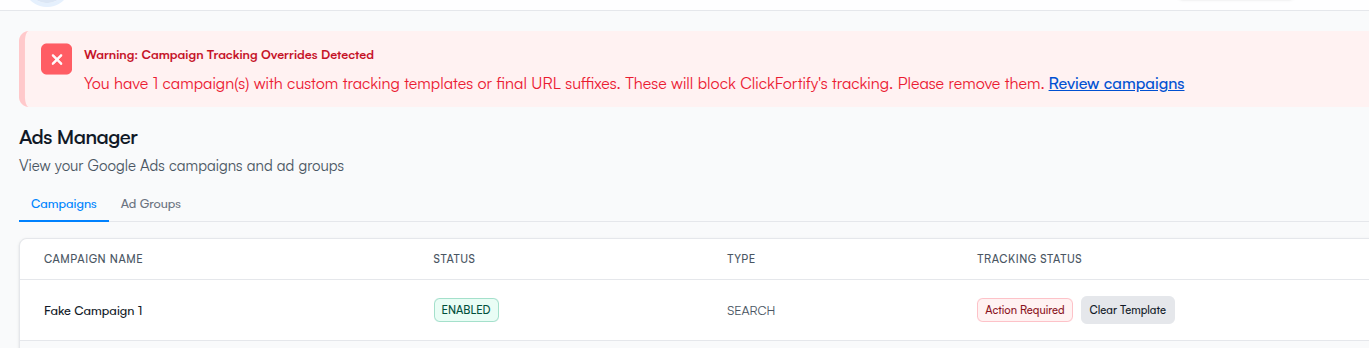
If clearing doesn't work, the campaign-level template is being inherited from somewhere higher (e.g. an MCC). Walk the full triage in Fixing a tracking template override.
"No campaigns found"
If the table is empty:
- Confirm the right ad account is connected in Space Settings → PPC Accounts.
- Run a Sync from PPC Accounts → Configure → Synchronize (not Refresh — see the warning above).
- Confirm at least one campaign exists in the Google Ads account.
- If you just connected the account, give the first sync ~15 minutes before assuming something's wrong.
Demo mode
If your space is in demo mode, the table shows sample campaigns instead of real ones. The data isn't real — connect a Google Ads account to see your own.
What happens next
- Settings — tune protection for these campaigns
- Exclusions — see what's been blocked from them
- Syncing your ad account — the full sync vs. refresh reference
- Verify your Google Ads connection — if the page looks empty or shows errors