
Automatic mode
How the 5 sensitivity levels in Automatic mode actually behave, and which one to pick for your account.
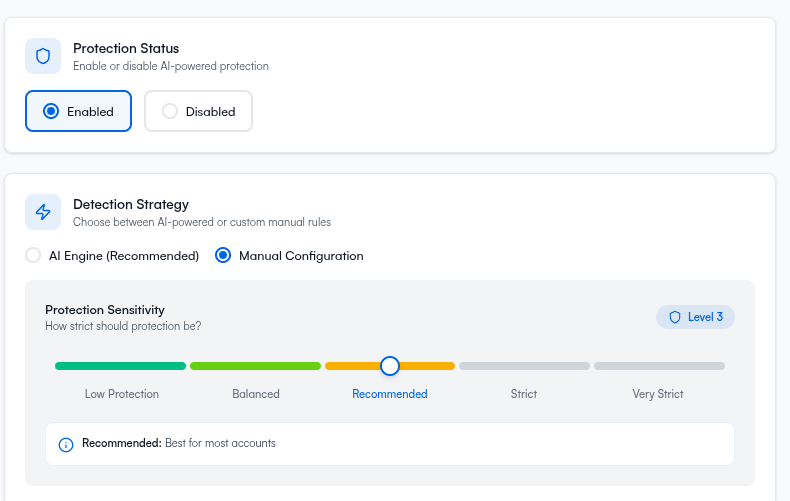
Automatic mode hands every detection decision to ClickFortify's AI engine. Your only setting is Detection Sensitivity — a slider from 1 to 5 that controls how aggressive the AI is about flagging traffic. This page covers what each level actually does and how to pick the right one.
The 5 levels at a glance
| Level | Name | UI description |
|---|---|---|
| 1 | Low Protection | Allows most traffic |
| 2 | Balanced | Filters obvious threats |
| 3 | Recommended (default) | Best for most accounts |
| 4 | Strict | Blocks aggressive patterns |
| 5 | Very Strict | Maximum fraud prevention |
The slider's default is Recommended (3). That's the right starting point for almost every account.
Pick the right level
Level 1 — Low Protection
Catches only the most obvious abuse — known bot signatures, data-center traffic, blatant click farms. Most other suspicious traffic is allowed through.
Catches: known bot user-agents, AWS/GCP/Azure/DigitalOcean IPs, traffic from known botnets.
Use this when: Legitimate users are getting flagged at Recommended or higher and you can't yet figure out why; or you're using ClickFortify primarily for visibility (dashboards, reports) and don't want it making blocking decisions; or you're running a campaign where false positives cost more than fraud.
Level 2 — Balanced
Catches the obvious cases plus repeat-offender patterns — IPs that come back too often, sessions with no engagement, mismatched device/browser combos.
Catches (additionally): the same IP visiting 5+ times/day, sessions with zero scroll or interaction, mismatched declared device vs. browser fingerprint.
Use this when:
- You're cautious and want to ease into protection. Spend a week at Balanced, then move to Recommended.
- Your traffic includes a lot of legitimate B2B users on shared networks (corporate offices, universities) where Recommended might over-flag.
Level 3 — Recommended (default)
Catches everything Balanced catches, plus behavioral patterns: instant bounces, impossible navigation speeds, fast-interaction bot tells, multi-target clickers.
Catches (additionally): sessions that leave in under 1 second, interactions that fire impossibly fast after page load, the same identity clicking on multiple of your campaigns within minutes.
Use this when:
- This is the default — use it unless you have a specific reason not to.
- You run typical B2C or B2B Google Ads campaigns to a public audience.
- You're not sure which level to pick. Pick this one.
Level 4 — Strict
Adds aggressive blocking on more ambiguous signals — repeat IPs even with limited evidence, geographic anomalies, VPN/proxy traffic by default.
Catches (additionally): VPN/proxy traffic flagged on a single visit (not just repeat visits), traffic from geographies that don't match your campaign targeting, lower repeat-visit thresholds.
Use this when:
- High-CPC industries: legal, insurance, finance, premium SaaS, enterprise B2B. The cost per fraudulent click justifies more aggressive blocking.
- You've been on Recommended for at least a week and the dashboard shows a meaningful amount of fraud is still getting through.
- You're targeting a narrow geography and want to flag traffic from elsewhere.
Level 5 — Very Strict
Maximum aggression. Blocks anything the AI scores as ambiguous, not just clearly bad. You will get some false positives.
Catches (additionally): any device/browser inconsistency, all VPN/proxy traffic, all repeat IPs above a low threshold, all geographic mismatches.
Use this when:
- Luxury/premium products with very-high-value clicks (e.g. $50+ CPC) where every fraudulent click hurts more than a missed real lead.
- You're under an active attack — a competitor or bot operator is hammering your account. Use Very Strict to weather the attack, then drop back down.
- Your conversion data clearly shows fraud is still slipping through at Strict.
How to tune
Sensitivity only takes effect on new clicks. Old flagged clicks in your exclusion lists stay flagged. Pair sensitivity changes with a review of Exclusions if you've been on a higher level and want to clear old false positives.
What happens next
- Manual mode reference — if Recommended is over-flagging and you need to disable one specific check
- Settings — back to the decision page