
Space settings
The Space Settings page — workspace info, PPC accounts, connections, and the danger zone.
The Space Settings page is the workspace-level configuration. From here you edit your space name and description, manage which Google Ads accounts are connected, see other integrations, and (carefully) delete the whole space.
Open the page
In the sidebar, open Space Settings → Space (or click your space name and pick Settings).
Space Information
The basic identity of your workspace.
| Field | What it does |
|---|---|
| Space name | Shown in the navigation bar; how team members recognize this workspace. Required. |
| Description | A sentence about the business. Used internally; visible to team members. |
Edit either field and click Save changes.
PPC Accounts
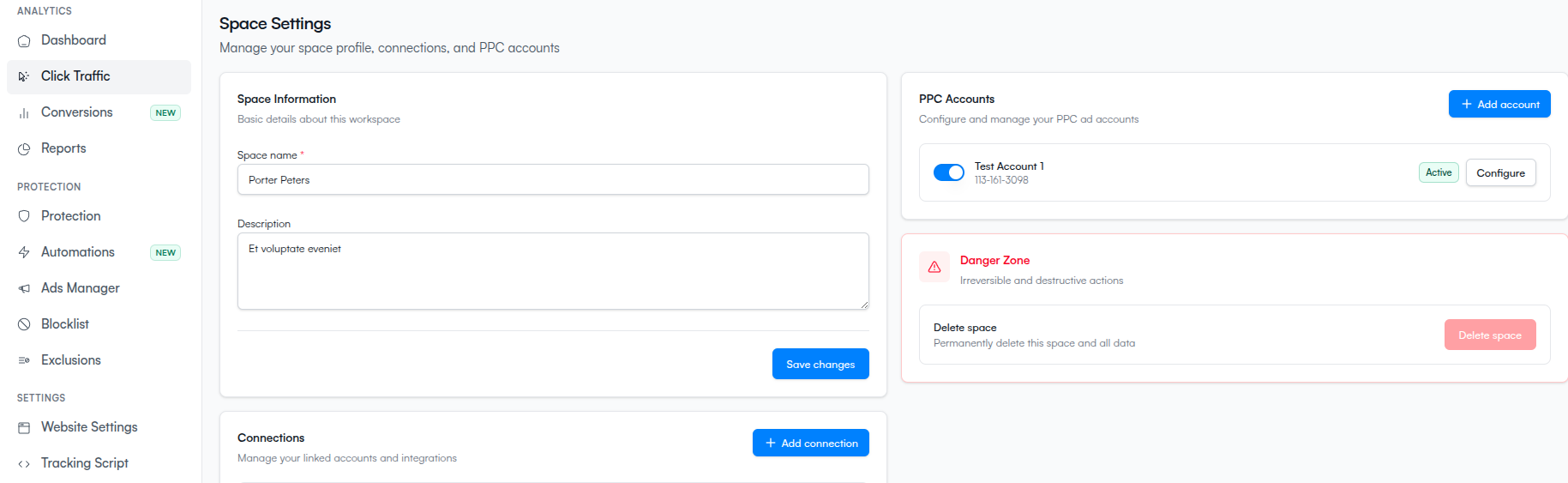
Lists every Google Ads account connected to this space. Each row shows the customer ID, active/inactive status, and a sync indicator.
- Use Add account to connect another Google Ads account — authorize a new Google login or reuse an existing connection. Full walkthrough: Add an ad account.
- Click Configure on a row to re-authorize, see sync settings, or remove the account.
- A Sync required badge means the tracking template wasn't installed in Google Ads — click into Configure to finish the sync.
For the full triage flow, see Verify your Google Ads connection and Troubleshoot Google Ads.
You need admin access on the Google Ads account to connect it. Read-only access in Google Ads isn't enough — ClickFortify needs to push tracking templates and exclusion lists.
Connections
The logins and integrations ClickFortify has been authorized to use: Google Auth (a Google login used to reach ad accounts), MCC Account (a manager account), and Google Tag Manager authorizations. One Google connection can reach many ad accounts — the PPC Accounts card above lists the individual accounts you've chosen to protect through them.
Click Configure on a Google connection to see which accounts it can reach, Synchronize the list, or Reauthorize it when access has been lost (see Re-authorizing a connection). Add new ones with Add connection.
If you're trying to install tracking via GTM and don't see your container, the GTM authorization happens during the GTM install flow, not here.
Danger Zone
Irreversible actions, grouped together with a red border so you don't trip over them.
Delete space
Permanently deletes the workspace and everything in it. There is no undo.
Deleting a space removes: all click data and analytics, every exclusion and blacklist entry, all team members and their access, every connection (Google Ads, GTM, webhooks), and every protection setting. Export anything you need before you confirm.
To delete:
What happens next
- Add a website — attach another domain to this space
- Add an ad account — connect another Google Ads account
- Team — invite and manage team members
- Blacklist — manual block list
- Verify your Google Ads connection — if the PPC Accounts section is showing problems