
Reports
Generate and download a CSV export of your click data for any date range — used for spreadsheet analysis, client reports, and Google Ads refund claims.
The Reports page generates a CSV export of your click data. Use it to drop data into a spreadsheet, share with a client, or build the evidence package for a Google Ads refund claim.
Reports aren't available in demo mode. You need a real connected website and tracking data before generating one.
Open the page
In the sidebar, click Reports.
Generate a report
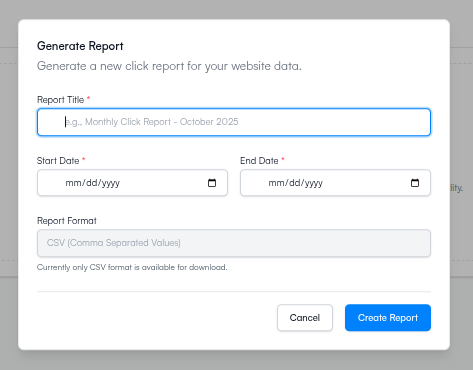
| Field | Notes |
|---|---|
| Report Title | A name you'll recognize later. Minimum 3 characters. |
| Start Date | First day of the date range. |
| End Date | Last day. Must be after the start date. |
The export format is CSV. Open it in Excel, Google Sheets, Numbers, or any spreadsheet tool.
Report status
After you submit, the report appears in the list below with a status badge:
| Status | What it means |
|---|---|
| Pending | Queued — waiting to start |
| Processing | Generating right now |
| Done | Ready to download |
| Failed | Something went wrong — hover the badge for details |
The page updates the status automatically while a report is processing — no need to refresh manually.
Download
When status shows Done, a Download button appears on the row. Click to save the CSV.
If status shows Done but no Download button appears, no click data existed for the date range you picked. Widen the range or confirm the tracking pixel is installed and firing.
Report history
Every report you generate stays in the list. Re-download any past report at any time.
What's in the CSV
The export contains one row per click with these fields:
| Field | What it tells you |
|---|---|
| Timestamp | Exact date and time |
| IP Address | Source IP |
| Status | Normal / Suspicious / Bad / Ignored |
| Is Bot | Whether bot behavior was detected |
| Is VPN | VPN or proxy used |
| Is Datacenter | Click from a server IP range |
| Country / City | Geographic origin |
| Campaign | Which campaign was targeted |
| Cost | Actual CPC charged |
Plus a summary header showing total clicks, bad clicks, wasted spend, and savings for the range.
Each report covers up to 10,000 clicks. For high-traffic accounts, split the date range into smaller chunks and generate multiple reports.
Using a report for a refund claim
The CSV is the evidence Google's click-quality team needs when you submit a manual refund request — IP addresses, timestamps, fraud classification, and cost per click are all in there.
Full process: How to get a Google Ads refund.
What happens next
- How to get a Google Ads refund — if the report is for a refund claim
- Click Traffic — the in-app view of the same data
- Monthly review — the recurring routine that builds on reports