
Automations
Custom rules that watch your traffic and take action when patterns match — beyond ClickFortify's built-in detection. With 5 worked examples to copy.
Automations are custom rules you write. Each rule watches some kind of traffic (source) hitting some part of your account (target), and when a threshold condition is met, runs one or more actions. They sit on top of the built-in detection — useful for catching patterns specific to your business that the AI doesn't know about.
Prefer to watch?
This 3-minute tutorial shows what an automation is, why the When → Where → Then model matters, how to build your first rule in the dashboard, and what happens when it fires.
When to use automations
The built-in detection in Protection settings handles common cases (bots, VPNs, suspicious behavior). Reach for automations when:
- A specific pattern keeps slipping through and you can describe it as a rule.
- You want to label fraudulent clicks for reporting without blocking them.
- You're an agency and want one client's protection to be stricter than another's.
- You want a custom delay before action (e.g. wait 5 minutes to confirm the pattern persists before acting).
The rule model
Every rule has the same parts:
| Part | What it answers |
|---|---|
| Source | What kind of identity am I tracking? |
| Target | Where in my account is the activity happening? |
| Criteria | What kind of threshold am I checking? |
| Threshold + period | How many events, in what window? |
| Actions | What do I do when the rule fires? |
| Delay (optional) | Wait this long before firing |
| Resolve status (optional) | Override the final session status (Suspicious / Bad) |
| Resolve classification (optional) | Tag the threat type for reporting |
Source — what to track
| Value | Tracks |
|---|---|
| IP address | Each individual visitor IP |
| IP range | Network ranges (e.g. /24) |
| Device | Unique device fingerprints |
| Visitor session | Browser sessions |
| Placement | Where the ad was shown (display network) |
Target — where the activity is happening
| Value | Scope |
|---|---|
| the campaign | A whole campaign |
| the ad group | An ad group inside a campaign |
| the keyword | A specific keyword |
Criteria — the threshold type
The form's Criteria dropdown has three choices, each pairing differently with your Source and Target:
| Option in the form | Meaning |
|---|---|
| Same visitor clicks repeatedly | The same source triggers N events on the target within the period. Pair with a Source like IP address or Device. |
| Target receives many clicks | The target receives N events from any source within the period. Use when you want to flag a campaign or ad group regardless of where the clicks come from. |
| Share of bad traffic exceeds threshold | A share of events on the target match a condition within the period. Use for percentage-based rules like "30% of clicks on this campaign have no engagement". |
Threshold + period
How many events (e.g. 3 clicks), what period (e.g. 1 hour). For Share of bad traffic exceeds threshold rules, also a share value (e.g. 50% of at least 10 clicks).
Actions — what happens when the rule fires
Pick one or more:
| Action | What it does |
|---|---|
| Block | Full ad-account block on the matched entity, for a duration you set (default 7 days). |
| Temp IP exclusion | Add the IP to the exclusion list for a duration (default 1 hour). |
| Audience exclusion | Add the visitor to your custom audience exclusion in Google Ads. |
| Labels | Apply free-text labels (for filtering and reporting; no enforcement). |
Resolve status (optional)
Override what the system marks the final session as. Options: Suspicious (yellow) or Bad (red). Leave default to let the AI decide.
Resolve classification (optional)
Tag the threat type for reporting. Options: Click farm, Competitor, Abusive, Bots, Threat, Bounced, Outside geo. Leave default to let the AI decide.
Delay (optional)
Wait N seconds after the threshold is met before actions fire. Useful when you want a brief grace period to avoid acting on transient bursts.
Labels are non-destructive — start there. If you're not sure about a rule, set Action = Labels only for a week. Watch which clicks it catches in Click Traffic. Switch to Block or Exclusion once the rule reliably catches what you wanted.
Creating a rule
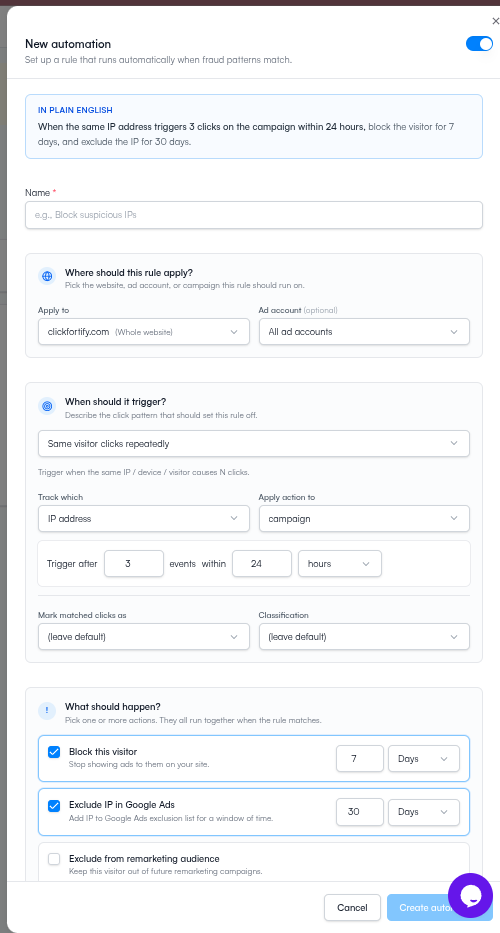
Five worked examples
Copy any of these directly into the form. Each is a real pattern teams use.
Example 1 — Velocity fraud (IP clicking too fast)
The most common pattern: one IP hammering your campaigns.
| Field | Value |
|---|---|
| Source | IP address |
| Target | the campaign |
| Criteria | Same visitor clicks repeatedly |
| Threshold | 5 clicks |
| Period | 1 hour |
| Actions | Block (7 days) + Labels: velocity-fraud |
| Scope | Website |
Rule sentence: When the same IP address causes 5 clicks on the campaign within 1 hour, block for 7 days and label as velocity-fraud.
Tune: if real users in shared offices are getting caught, raise the threshold to 8–10 or drop the period to 30 minutes. If fraud still slips through, lower the threshold to 3.
Example 2 — Campaign volume spike (observe-only)
Detect sudden bursts; label without blocking so you can investigate first.
| Field | Value |
|---|---|
| Source | Any (the criteria below counts all sources) |
| Target | the campaign |
| Criteria | Target receives many clicks |
| Threshold | 50 clicks |
| Period | 10 minutes |
| Actions | Labels: bulk-spike only |
| Scope | Campaign |
Rule sentence: When the campaign receives 50 clicks within 10 minutes, label as bulk-spike.
Use case: great as a first rule. Run it for a week to see how often you get spikes. If clusters of bulk-spike clicks look fraudulent, convert it to a Block rule.
Example 3 — Device-level repeat (catches VPN-rotating IPs)
When attackers rotate IPs via VPN, device fingerprint stays stable. Track by device, not IP.
| Field | Value |
|---|---|
| Source | Device |
| Target | the ad group |
| Criteria | Same visitor clicks repeatedly |
| Threshold | 3 clicks |
| Period | 6 hours |
| Actions | Temp IP exclusion (24 hours) + Audience exclusion |
| Resolve classification | Click farm |
| Scope | Ad Account |
Rule sentence: When the same device causes 3 clicks on the ad group within 6 hours, exclude IP for 24 hours, exclude from audience, and classify as click farm.
Use case: if you've seen device-based fraud in Click Traffic (one device, several IPs, same browser fingerprint).
Example 4 — Low-engagement campaign (percentage-based)
Flag campaigns where most clicks have no engagement — often a sign of bot traffic on a specific campaign.
| Field | Value |
|---|---|
| Source | Any (the share applies to all clicks on the target) |
| Target | the campaign |
| Criteria | Share of bad traffic exceeds threshold |
| Threshold | 30% of at least 10 clicks |
| Period | 24 hours |
| Actions | Labels: low-engagement |
| Resolve status | Suspicious |
| Scope | Campaign |
Rule sentence: When more than 30% of clicks (of at least 10) on the campaign match within 24 hours, label as low-engagement and mark as suspicious.
Use case: observe-only rule for campaigns you suspect have bot traffic. Confirm via Click Traffic before turning the label into a Block action.
Example 5 — Placement exclusion (Display Network)
Block specific Display Network sites or apps that keep sending bad traffic.
| Field | Value |
|---|---|
| Source | Placement |
| Target | the campaign |
| Criteria | Same visitor clicks repeatedly |
| Threshold | 20 clicks |
| Period | 12 hours |
| Actions | Block (14 days) |
| Scope | Campaign |
Rule sentence: When the same placement causes 20 clicks on the campaign within 12 hours, block for 14 days.
Use case: Display Network has dramatically higher invalid-traffic rates than Search. Pair this with the Placement Exclusion manual check.
Where rules live in the scope tree
A rule applies at whatever scope was selected when you created it:
- Website-level rule — watches all ad accounts and campaigns on that site.
- Ad-account-level rule — watches only that one Google Ads account.
- Campaign-level rule — watches only that one campaign.
Narrower beats broader if both match the same event.
Managing rules
The Automations page lists every rule with status, trigger count, and last-fired timestamp. Click any row to edit, toggle on/off, or delete. Click the executions drawer icon to see the rule's recent firings — useful for tuning.
Best practices
- Start with Labels. Run a new rule with Labels-only for a few days to see how often it fires before you switch to Block. Resolve status of "Suspicious" is also non-destructive.
- One condition per rule. Multi-condition rules are harder to reason about. Make separate rules and let them stack.
- Use the narrowest scope. A campaign-level rule won't affect other campaigns if it misfires.
- Review weekly. Check trigger counts. A rule that never fires is dead weight; one that fires constantly is probably miscalibrated.
- Use Resolve classification to tag fraud type — it makes your dashboards and reports much easier to read.
What happens next
- Exclusions — see what automations and the AI have currently blocked
- Settings — the AI-side controls that handle most cases
- Click Traffic — investigate clicks your rules flagged