
Select an ad account
Step 3 of the wizard — give us your website URL, pick the Google Ads account to protect, and set the two tracking options.
After authorizing, ClickFortify shows every ad account your Google login can reach. Step 3 collects three things: your website URL, which ad account to protect, and how you want tracking and audience options set on it.
Fill in the form
https://example.com). We'll verify it's reachable so tracking can be installed.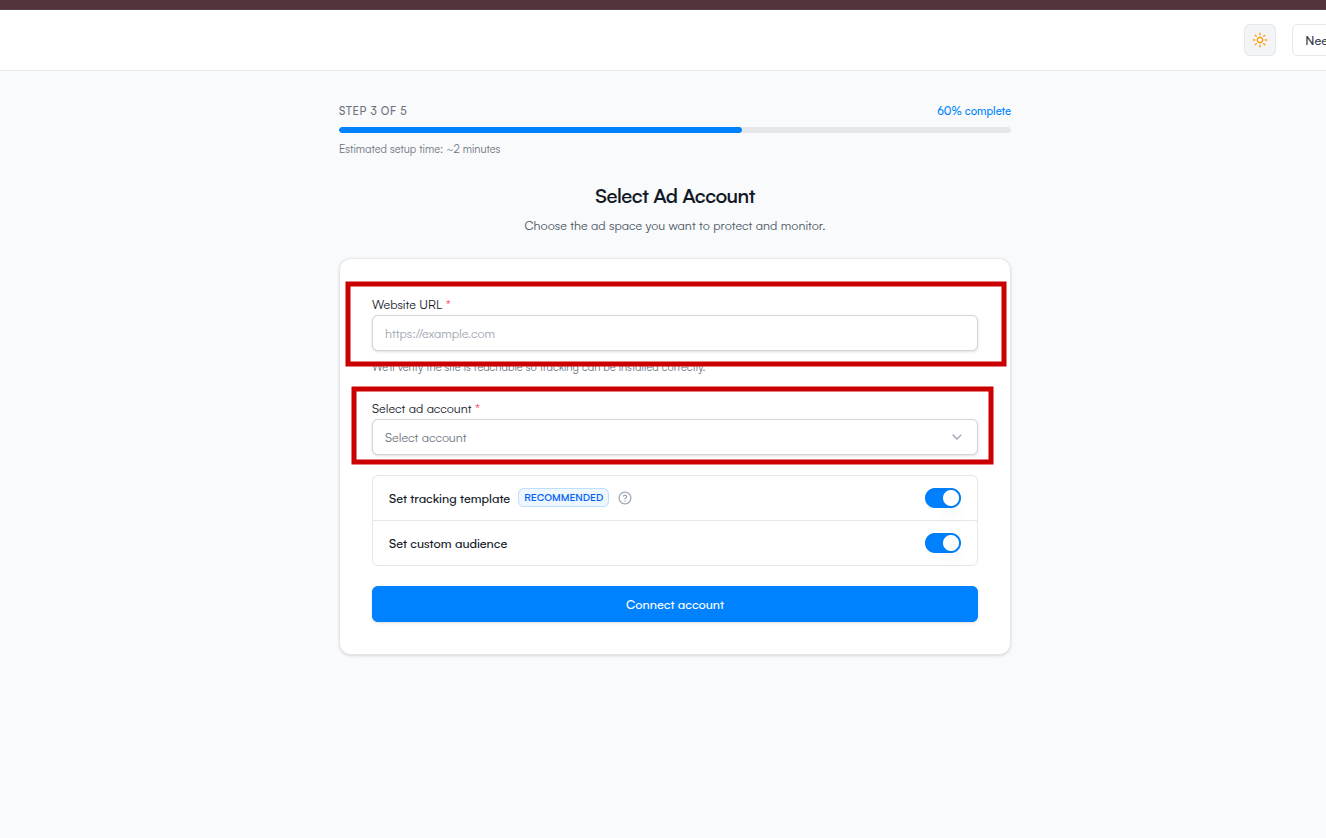
What if you see a manager (MCC) account
A manager account (MCC) doesn't run ads itself — it manages other ad accounts. If you pick one, ClickFortify shows a second PPC account (MCC child) dropdown so you can pick the actual ad account.
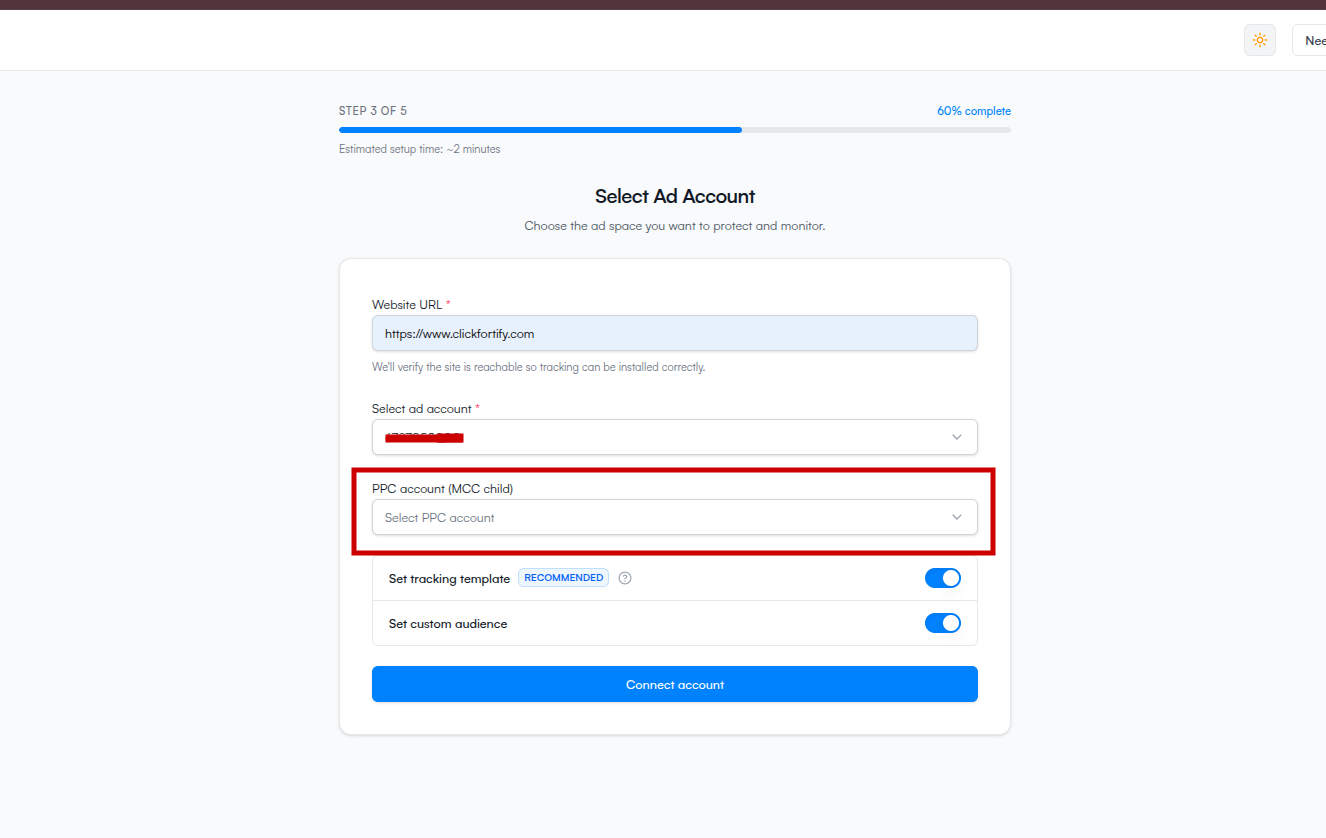
If the MCC has no PPC accounts inside it, you'll see "This MCC doesn't have any PPC accounts. Please try another." — pick a different MCC or a non-MCC account.
What if you don't see your account
If the dropdown is empty ("No linked Google Ads accounts found. Please go back and link your account"), the most common cause is the Google login you used in step 2 doesn't have admin access on any ad account. Have an admin grant access in Google Ads, then return to step 2 and re-authorize.
What if the website URL is rejected
The URL has to use http:// or https:// and end in a real TLD. We reject .local, .localhost, .test, .invalid, and .example — these are reserved for testing and aren't real public domains.
What happens next
- Understand the tracking options (recommended before continuing)
- Step 4: Choose your plan