
Auto-detection and troubleshooting
What 'Waiting for events…' means on step 5 and what to try if the wizard doesn't see your tracking install.
Step 5 polls every 3 seconds to see if your tracking script has fired. Here's what each state means and what to try if it's stuck.
What "Waiting for events…" means
The blue spinner state appears as soon as you land on step 5 and stays until the wizard sees a real pageview from your site. This is normal for a few seconds after install — your browser needs to load a page on your site that contains the snippet, and the snippet needs to fire and report back.
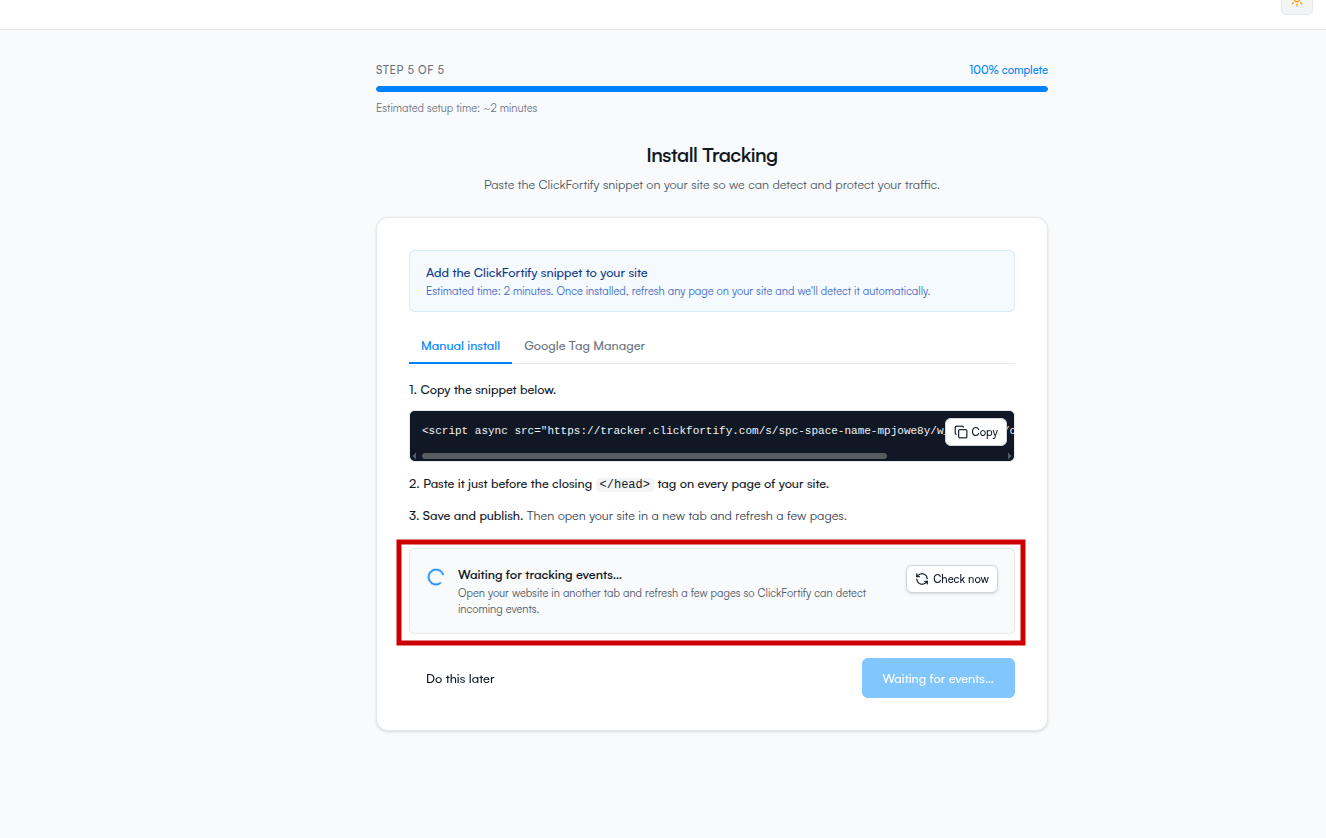
When auto-detection runs
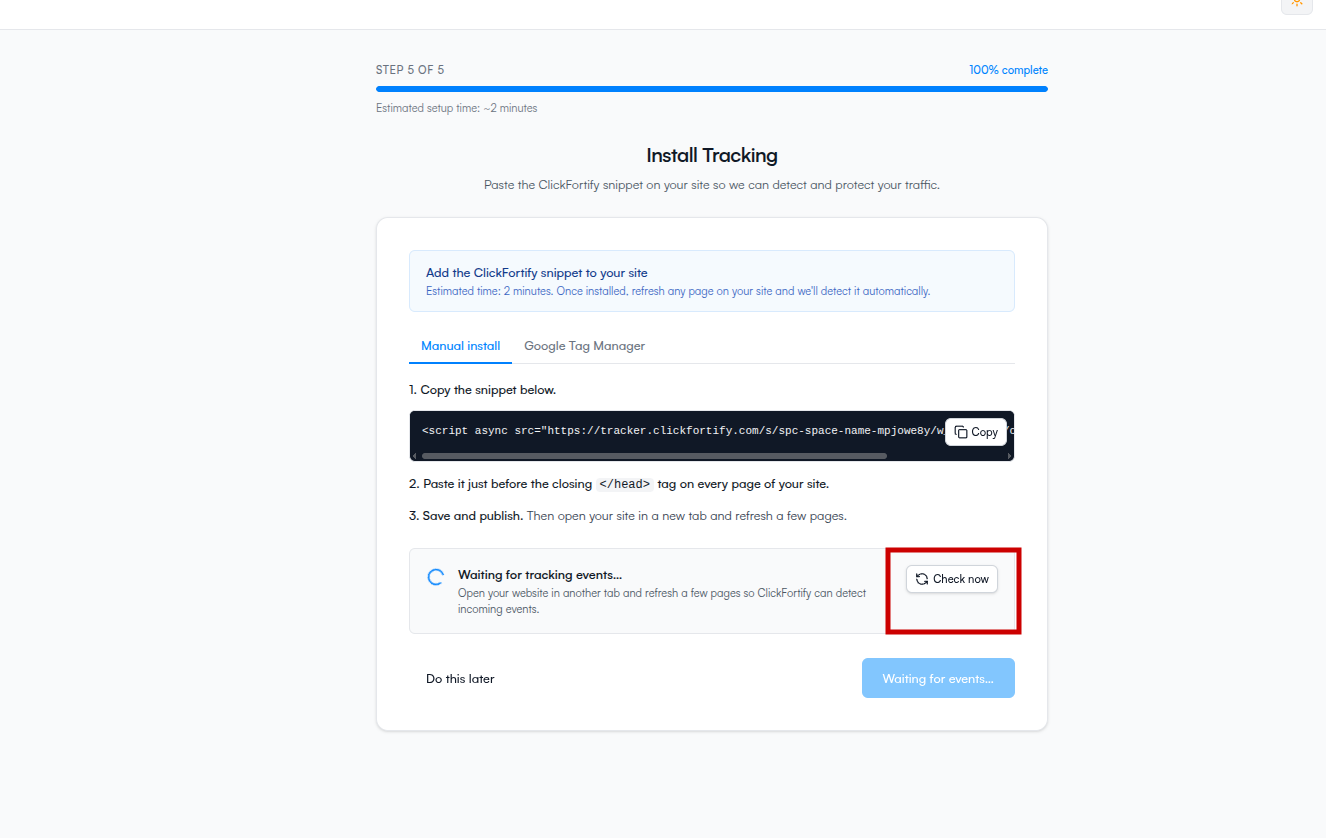
ClickFortify checks every 3 seconds while the page is open. You can also force a check by clicking Check now in the top-right of the status banner.
If you see "Couldn't check tracking status — retrying…"
This amber message means the wizard couldn't reach ClickFortify's servers on the last check. It keeps retrying every 3 seconds, so usually you can just wait. If it persists for more than a minute:
- Refresh the wizard page in your browser.
- Check that you're connected to the internet.
- Open the browser's network tab and see if requests to
app.clickfortify.comare failing — if they are, an ad blocker or corporate firewall may be blocking us.
If the page just keeps waiting
If the status stays on Waiting for events… with no error and you've already installed the snippet, walk through this list — these are the things that catch most people:
- Did you load a page on your live site? Detection only counts pageviews on the real, deployed site. Editing your site's source file doesn't count — you have to open the site in a browser and refresh a page.
- Is the snippet actually on the page you loaded? Open your site in a new tab, right-click → View page source (not Inspect), and search for
tracker.clickfortify.com. If it's not in the source, the snippet wasn't deployed. - Is the snippet before
</head>? If it's inside<body>or after</head>, some browsers may skip it. Move it. - Did you copy the snippet from the wizard? The snippet has a unique URL per space. If you typed it manually or copied an old one, it won't match.
- Is an ad blocker eating it? Test in an incognito window with extensions disabled.
- Is your site behind a cache or CDN? A deploy may not be live yet — purge the cache.
Use "Check now" to force a refresh
If you just made a change (deployed the snippet, purged a cache, disabled an extension), click Check now above the status banner. It triggers an immediate check instead of waiting up to 3 more seconds.
What success looks like
When detection succeeds, the status banner turns green and reads Tracking successfully connected. The Continue to dashboard button becomes active.
What happens next
- Once detection succeeds, continue to the dashboard
- If you'd rather come back to this later, see Do this later